MyScript Notes: AI Note Taking
- 4.6
- Rating
- 1.00M
- Installs
- Free
- Price
 Analysis by App-foxy
Handwritten notes are quick to make and surprisingly slow to use later. I can jot down an idea during a lecture, meeting, or commute, but finding one detail afterward often means flipping through pages, guessing which notebook I used, and rewriting the useful parts somewhere searchable. MyScript Notes: AI Note Taking is built around reducing that repeated chore. It is a productivity app from MyScript that combines handwriting, PDF work, handwriting-to-text conversion, and AI-assisted notes in one workspace.
After using it as a digital notebook rather than treating it like a simple text editor, I found its main appeal quite clear: it lets me keep the speed and natural feel of writing by hand while giving selected notes a more practical digital form. That does not make every handwritten page instantly perfect, and it does not replace a full document editor, but it can remove a lot of copying and reorganizing.
The app is free to start, with in-app purchases ranging from $1.99 to $29.99 per item. It is rated for Everyone and requires Android 8.0 or later. Its current version is 7.3.11, and it has passed one million installs, with a 4.6 average from roughly thirty-seven thousand ratings. Those figures suggest that it has found a substantial audience among people who want handwriting to remain part of their workflow instead of abandoning it completely.
You May Also Like

 Blood Strike: 2.5 Anniversary
Blood Strike’s Loadouts Turn Every Drop Into a Tactical Gamble
A close look at Blood Strike’s custom loadouts: how fast access to signature weapons reshapes its battle royale rhythm, rewards preparation, and narrows the gap between fights.

 Pandora - Music & Podcasts
Pandora’s Music Is Easy to Start, but Harder to Recover
Pandora’s strength is its low-effort path from a seed to a station. Its weak spot is how much confidence it asks you to place in connection, setup, and quiet recovery.

 8 Ball Pool
 Is Built on Rivalries, Rematches, and Routine
A close look at the rivalries, rematches, shared routines, and unanswered safety questions that turn a quick pool match into a persistent mobile community.

 Samsung Music
’s Quiet Strength Is Playing What You Already Own
Its reach comes less from spectacle than from dependable access to a personal library. That simplicity is both the app’s strongest retention engine and its ceiling.

 AccuWeather: Weather Radar
AccuWeather Review: A Quick, Clear Forecast for Everyday Decisions
For everyday plans, the best forecast is the one you can understand quickly. AccuWeather makes rain timing, radar, and local conditions easy to act on, with a few trade-offs.

 Hill Climb Racing
Why Hill Climb Racing Still Turns Crashes Into One More Run
A tiny car, a bumpy hill and one more upgrade: Hill Climb Racing keeps resurfacing because its simple chaos makes every near-miss feel personal.
More From Our News Desk
View All News


Turning quick handwriting into notes I can actually reuse
I found that the most useful first step is to test how MyScript Notes handles the way I actually write, then decide which parts of a page deserve conversion. That small trial can reveal where handwriting stays clearest and where a little spacing or structure makes later reuse easier.
The first setup matters more than it seems
The best way to begin is not by importing every old notebook at once. I recommend creating one small test note first: write a heading, a short list, a few lines of normal handwriting, and perhaps a simple diagram. This gives you a realistic sense of how your own writing behaves when converted, rather than relying on a neat sample written slowly for demonstration.
That test also helps establish a useful division between handwritten material and converted text. I would keep brainstorming, arrows, rough layouts, and personal reminders in their original form. I would convert meeting summaries, study definitions, or action lists only when I know I will search, share, or edit them later. Converting everything can create unnecessary cleanup, while converting nothing wastes one of the app’s strongest advantages.
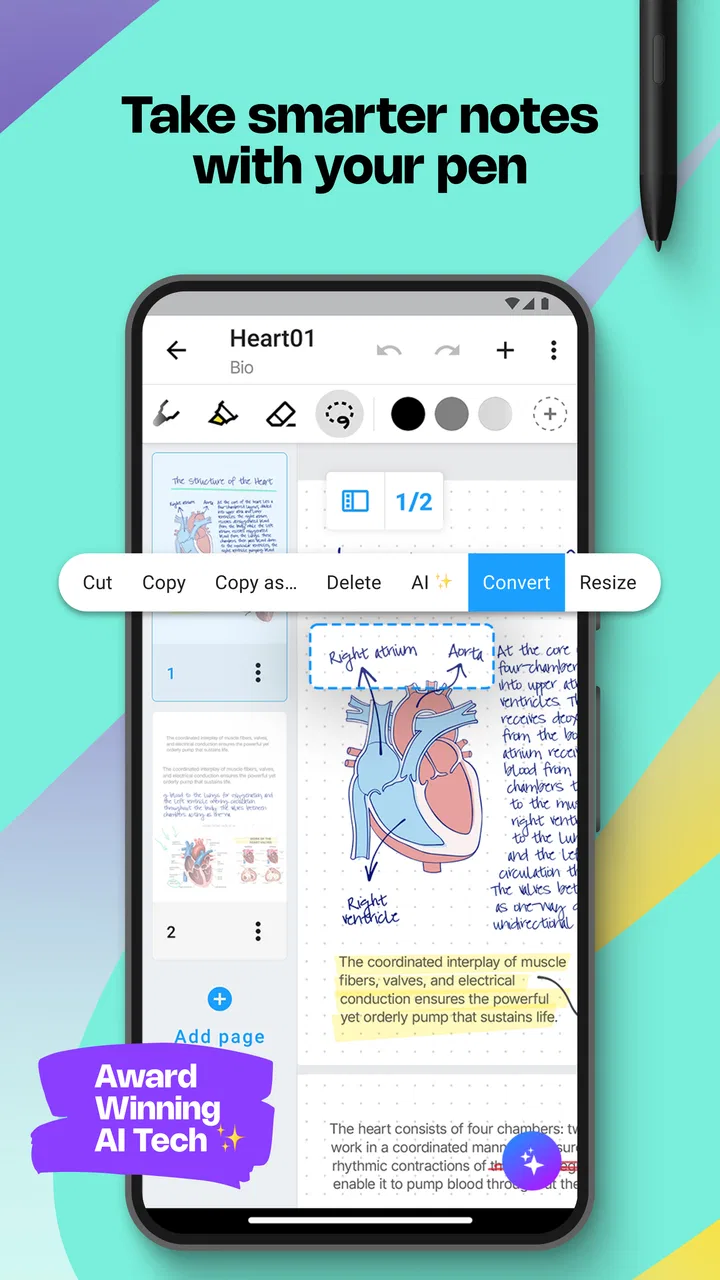
PDF support makes the initial setup more useful for students and office work. Instead of switching between a document viewer and a separate notebook, I can work around the material I am reading and add my own handwriting in context. The practical benefit is not simply having another place to draw. It is keeping the source document and my reactions together, so I do not later have to remember which comment belonged to which page.
AI notes are best approached as an organizing aid rather than an authority. I would use them after capturing a page of thoughts, especially when the note contains several topics or a mixture of observations and tasks. The sensible habit is to review the result against the original handwriting before treating it as a finished summary. That small check is important because the value of any automated note depends on whether the meaning survived the transformation.
A realistic study workflow
Imagine I am reading a long course PDF before an exam. I can mark the page with handwritten explanations, circle terms that need revision, and add a question beside a difficult paragraph. Later, I can turn the portions that matter into typed material for a cleaner revision sheet. The original annotations remain useful because they preserve emphasis and connections that plain copied text often loses.
A particularly effective approach is to separate capture from cleanup. During class, I would write quickly and avoid interrupting the lesson to make every line tidy. Afterward, I would convert only the pages that contain examinable material, correct recognition mistakes, and use the resulting text as the foundation for a compact study note. This saves more time than trying to produce polished handwriting while listening.
There is also a useful trade-off here. Handwriting is excellent for diagrams, spatial relationships, and memory cues, while typed text is better for long explanations and later editing. MyScript Notes works best when I allow both forms to coexist instead of forcing every page into one style.
Where it fits into everyday work
For a meeting, I would create a page with a clear title and write names, decisions, and follow-up items as they arise. Immediately afterward, I could convert the action points rather than transcribing the entire page. That is a more realistic time saver than expecting the app to turn messy shorthand into a flawless formal report.
For personal planning, the app is useful when a paper list feels faster than typing. I can write errands, add arrows when priorities change, and later convert only the final list. The handwritten layer remains a record of how the plan developed, while the converted version becomes easier to adjust or copy into another workflow.
For creative work, I would use it as a thinking surface rather than a final publishing tool. A product outline, travel plan, lesson structure, or room arrangement can begin with loose handwriting and visual marks. Once the structure is settled, selected sections can become editable text. This avoids the common problem of losing useful early ideas simply because they were captured in a notebook that is difficult to revisit.
What it removes from the usual note-taking process
The biggest friction removed is the forced choice between writing naturally and keeping information editable. Traditional paper is fast but hard to search and reorganize. A standard typed notes app is searchable but can slow down sketches, equations, and free-form thinking. This app sits between those approaches, allowing me to start with the method that feels fastest and tidy only what deserves further work.
PDF annotation adds another layer of convenience. With ordinary paper notes, I often write a page number or a vague reference and hope I can reconnect the thought later. Writing alongside the relevant PDF page makes that association immediate. When reviewing material, I spend less time reconstructing context and more time deciding what the annotation means.
The app also reduces duplicate work when a handwritten note needs to become a message or document. Instead of retyping an entire page, I can use conversion as a first draft and correct the parts that need attention. The important expectation is “first draft,” not “finished transcription.” Handwriting varies greatly, and fast writing, unusual names, abbreviations, and mixed layouts can still require manual correction.
Another subtle advantage is selective digitization. I do not have to choose between preserving the original page and producing clean text. Keeping both versions lets me return to the source when a converted sentence looks suspicious. That is especially useful for study notes, where a small recognition error can change the meaning of a technical term.
Practical habits that improve results
Writing with consistent spacing and leaving room between separate ideas makes later conversion easier. I would also use recognizable headings for major topics, even in a casual note. A simple structure gives AI-assisted organization more useful material to work with and makes the page easier to scan before any processing happens.
Short, focused pages are generally more manageable than one enormous canvas containing an entire project. For example, I would keep a meeting record separate from the follow-up checklist, or divide a study session by subject. This is not about creating needless folders; it is about making each page understandable when I return to it weeks later.
I would avoid relying on conversion for handwriting that is intentionally compressed. Personal shorthand may be fast for capture but difficult for any recognition system to interpret. In that situation, the original handwriting is still valuable, but I would not expect the converted result to preserve every abbreviation correctly.
It is also worth deciding in advance what should remain handwritten. Diagrams, visual comparisons, arrows, and rough calculations often become less useful when flattened into ordinary paragraphs. Converting only the explanatory sentences keeps the visual logic intact and prevents cleanup from taking longer than the original writing.
Where the experience is less smooth
The app is not a universal replacement for a keyboard-first notes system. If most of my work involves long, polished documents, extensive formatting, or rapid editing of several paragraphs, a conventional text editor is usually more efficient. Handwriting conversion introduces a review step, and that step is unnecessary when I could have typed the content accurately from the beginning.
It can also feel excessive for very simple reminders. If I only need to record “buy batteries,” opening a handwriting workspace, writing it, and later converting it adds process rather than removing it. The app earns its place when the note has visual structure, needs PDF context, or begins as handwriting but may later need to become editable text.
AI assistance should be treated with the same caution I would apply to any automated organization tool. A summary can help me see the shape of a page, but I would not use it as the only record of a detailed discussion or an important study topic without checking the source. The original note is the safeguard, and the workflow is strongest when the AI output speeds up review rather than replacing judgment.
There is also a learning curve in deciding when to use each mode. New users may initially write everything, convert everything, and then wonder why the process feels busy. In my experience, the better rhythm is capture freely, identify what will be reused, and convert only that material. Once that habit develops, the app feels considerably less like a collection of tools and more like one continuous workflow.
Who should use it, and who should skip it
I would recommend it to students who annotate PDFs, professionals who think faster with a pen, and anyone moving between handwritten brainstorming and typed follow-up. It is particularly appealing if the frustration is not writing itself but what happens afterward: searching, copying, organizing, and turning rough pages into something reusable.
It is less suitable for someone who wants a minimal text-only notebook, a full office suite, or a paperless workflow built entirely around a physical keyboard. People who rarely write by hand may gain little from its central idea. Likewise, anyone expecting flawless recognition of rushed handwriting should adjust expectations before making it part of an important process.
The free entry point makes it easy to test the basic workflow without committing immediately. The available in-app purchases, priced from $1.99 to $29.99 per item, mean that I would first confirm that handwriting, PDF annotation, and conversion fit my routine before paying for anything. The right question is not whether every feature sounds useful, but whether the app saves enough repeated cleanup in my own week.
My final judgment
MyScript Notes: AI Note Taking solves a specific and recurring problem: handwritten information is pleasant to capture but inconvenient to reuse. Its strongest idea is not simply recognizing handwriting or adding AI. It is allowing me to preserve the original page while selectively turning useful parts into cleaner, more manageable notes.
I would choose it over a basic notes app when I need handwriting, PDF context, or visual thinking. I would choose a traditional text editor when the work is already typed and needs heavy formatting. I would stay with paper when the note is private, temporary, and unlikely to be needed again.
For the right user, the time savings come from avoiding full transcription and from keeping source material beside personal annotations. The limitations are equally clear: recognition needs checking, AI output needs judgment, and simple typed reminders may be faster elsewhere. The best results come from using it as a bridge between handwriting and organized digital notes, not as a magic replacement for either one.
That balance is why I find it worth trying. It respects the speed of writing by hand while giving important pages a path toward searchable, editable, and better-organized information. If that is the recurring bottleneck in your own study or work, this productivity app from MyScript is a practical choice for Android users on version 8.0 or later, with an Everyone content rating and a free starting point.
FAQs for MyScript Notes: AI Note Taking
01What is MyScript Notes: AI Note Taking, and what can I use it for?
MyScript Notes: AI Note Taking is a digital notebook designed for handwritten note-taking on compatible Android and iOS devices. You can write with a stylus or your finger, organize notes into notebooks, sketch ideas, annotate documents, and convert handwriting into editable text. Its AI-oriented features can also help summarize or organize content, depending on the device, app version, and available subscription plan.
02Does MyScript Notes convert handwriting into typed text accurately?
The handwriting recognition is one of the app’s main strengths, especially when writing clearly with a supported stylus. In testing, recognition generally works well for common handwriting and several languages, but results can vary with rushed writing, unusual symbols, mathematical notation, mixed languages, or poor-quality input. It is still worth reviewing converted text before sharing it or using it in an important document.
03Is MyScript Notes: AI Note Taking free to download and use?
The app may be available to download without an upfront charge, but some advanced tools can require a paid plan, in-app purchase, or subscription. Features such as expanded AI assistance, handwriting conversion, document tools, synchronization, or additional export options may differ by platform and region. Before downloading, check the current store listing carefully for trial terms, renewal details, and included limitations.
04Can I use MyScript Notes without an internet connection?
You can generally create and edit notes offline, which makes the app useful for classes, meetings, travel, or situations where connectivity is unreliable. However, cloud synchronization, account-based backup, AI processing, and some sharing or conversion features may require an internet connection. If your notes are important, confirm that synchronization has completed before switching devices or deleting local content.
05Which devices and accessories are best for using MyScript Notes?
MyScript Notes is most comfortable on tablets or larger-screen phones that support accurate stylus input, although basic writing may also be possible with a finger. A pressure-sensitive pen usually provides a more natural experience for handwriting, diagrams, and annotations. Compatibility, supported operating systems, storage requirements, and feature availability can vary, so verify the app’s current Android or iOS requirements before installing.
Pros
- Handwriting feels natural with responsive ink and smooth pen strokes.
- Converts handwritten notes into editable text with useful accuracy.
- Supports sketches
- diagrams
- and mixed handwritten and typed content.
- Powerful search helps locate words across handwritten notebooks.
- Cloud synchronization keeps notes available across supported devices.
Cons
- Many advanced features require a subscription after the trial period.
- Recognition accuracy can drop with messy handwriting or unusual layouts.
- Large notebooks may take time to sync or load on older devices.
- Editing converted handwriting may require occasional manual corrections.
- Some features depend on compatible styluses and device support.

MyScript Notes: AI Note Taking
Gallery